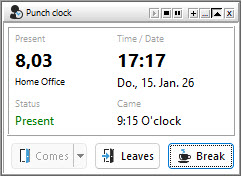
Scenario 1: Employees work entirely with project time tracking using manual entries.
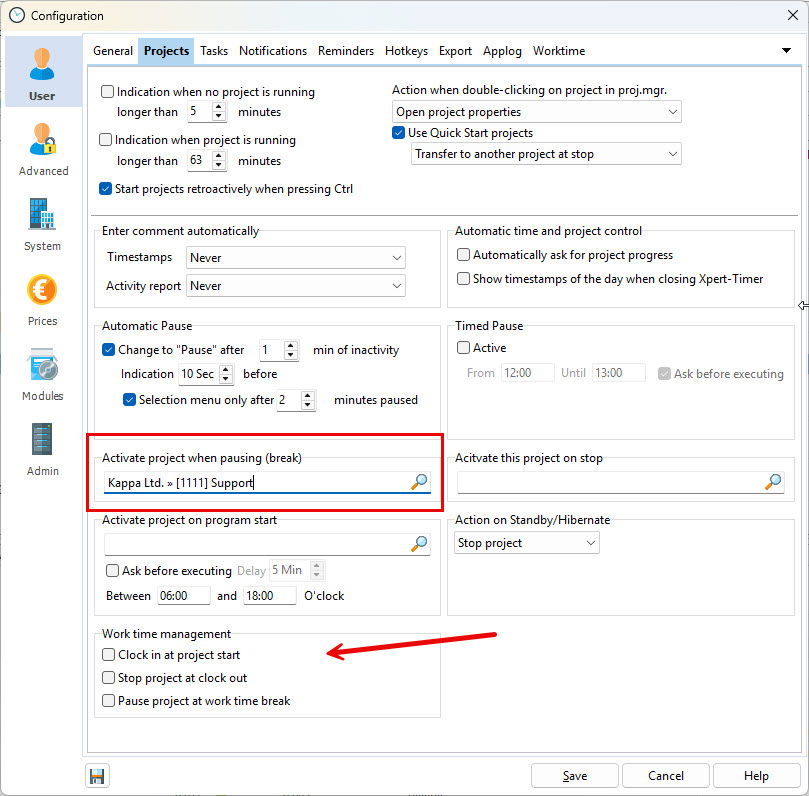
If all employees record their project times via manual entries, break times must also be booked to a project. The “Break Project” defined in the Project Time Tracking configuration is transferred as a break time stamp when times are imported into Time Tracking.
This also applies to the function “Activate project on stop”, if the selected project is the same as the break project configured for “Activate project on break”. In this case, you can use both the Pause button and the Stop button in Project Time Tracking, and the time stamps will be transferred as breaks in Time Tracking.
If no breaks are recorded, the statutory break times are deducted automatically at the end of the day.
WARNING: This is not legally compliant, as the employer has no verifiable proof that breaks were actually taken. You should therefore require employees to always record their break times.
Proceed as follows:
1. Remove all checkmarks in the configuration section Time Tracking. Only days without existing time stamps in Time Tracking can be imported from Project Time Tracking. As soon as a time stamp exists in Time Tracking, that day will no longer be transferred.
Configure a break project that is started when the Pause button is pressed in Project Time Tracking. You can use the same project for the Stop action if you want stopping a project to also be treated as a work break.
You can also record manual entries in a project such as “Lunch Break”. However, this project must still be configured as the break project.
2. At the end of the month, right-click to import the project times into Time Tracking. You can also do this during the month, but note that any later changes to project time stamps will not be synchronized again. In that case, you must delete the entire workday in Time Tracking and re-import the project times.
Recommendation: Import project times at the end of the month, once all project time entries are complete and correct.

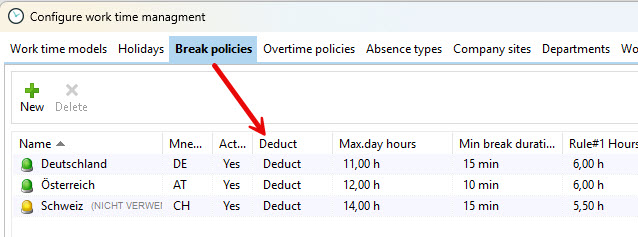
3. If no break times are recorded in Project Time Tracking, you can configure automatic deduction of statutory breaks in the break rules. Please note that this is not legally compliant, as deducting time only assumes that a break was taken.
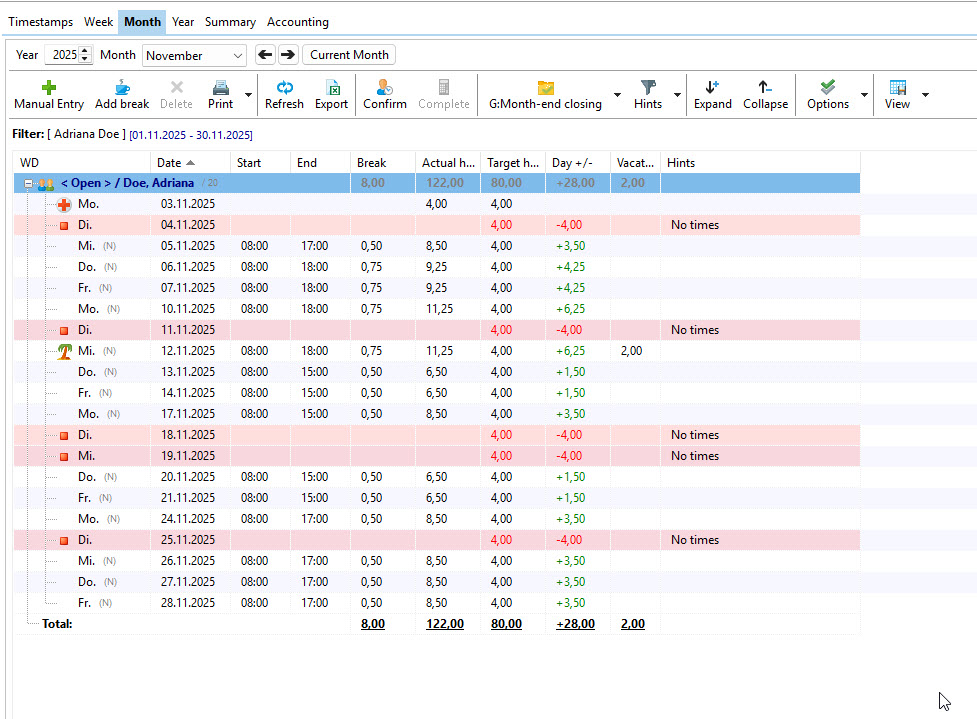
After importing project times, all workdays with project entries are populated. Days without recorded times are highlighted in red and should be reviewed.
Scenario 2: Automatic clock-in via a project, breaks and clock-out via Time Tracking
If you want to use Time Tracking in a legally compliant way, employees must record Check In / Check Out / Break separately.
In the Project Time Tracking configuration, you can still link individual actions. If you define a program start project, starting Xpert-Timer can automatically start Time Tracking as well.

From that point on, all actions must be performed in Time Tracking. This means breaks and the end of the working day are recorded using Time Tracking.
The easiest way to do this is via the timeline:

Alternatively, you can use the Project Manager or the floating time clock.