You have made a good choice. Thank you for using Xpert-Timer for time tracking. Here are some short instructions for an easier start.
If your license for time tracking has been activated, you can activate it in the menu item Help -> License Overview.

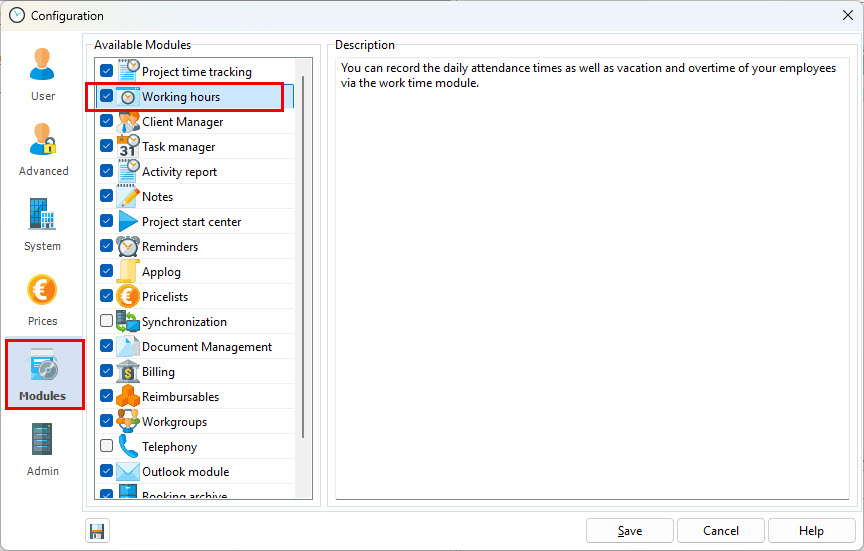
In the next step, check whether the additional module is activated in Configuration -> Additional Modules.
1.Assign the additional module to each employee in the access mode. To do this, double-click an employee name in the employee list and open the employee data. There you will find the access mode.
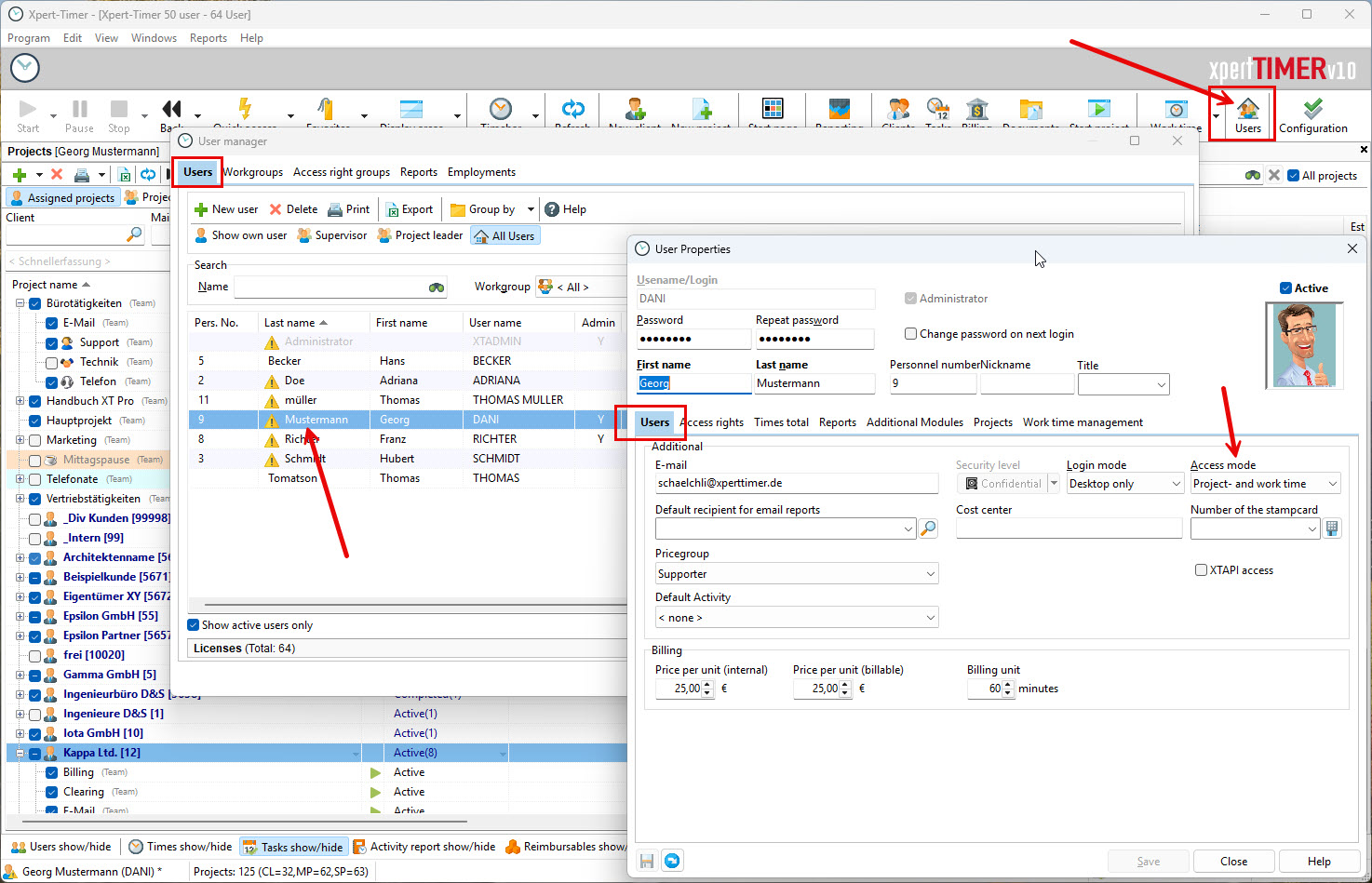
2.Start the time tracking interface via the project manager if you are using project time tracking:
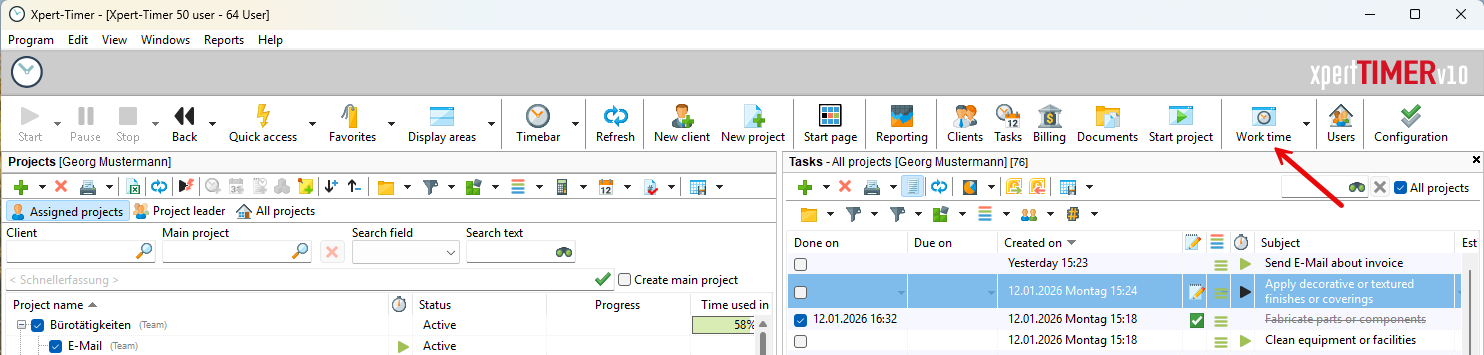
3.Then open the WT configuration and create your working time models, public holidays, break regulations, overtime regulations and absence types one after the other. The locations, departments and workplaces can be used if required, but are only necessary for groupings in the evaluation. Also check the system settings to see if there are any interesting settings for you.

4.After setting up the configuration, edit the individual employees and create a new employment with a working time model.
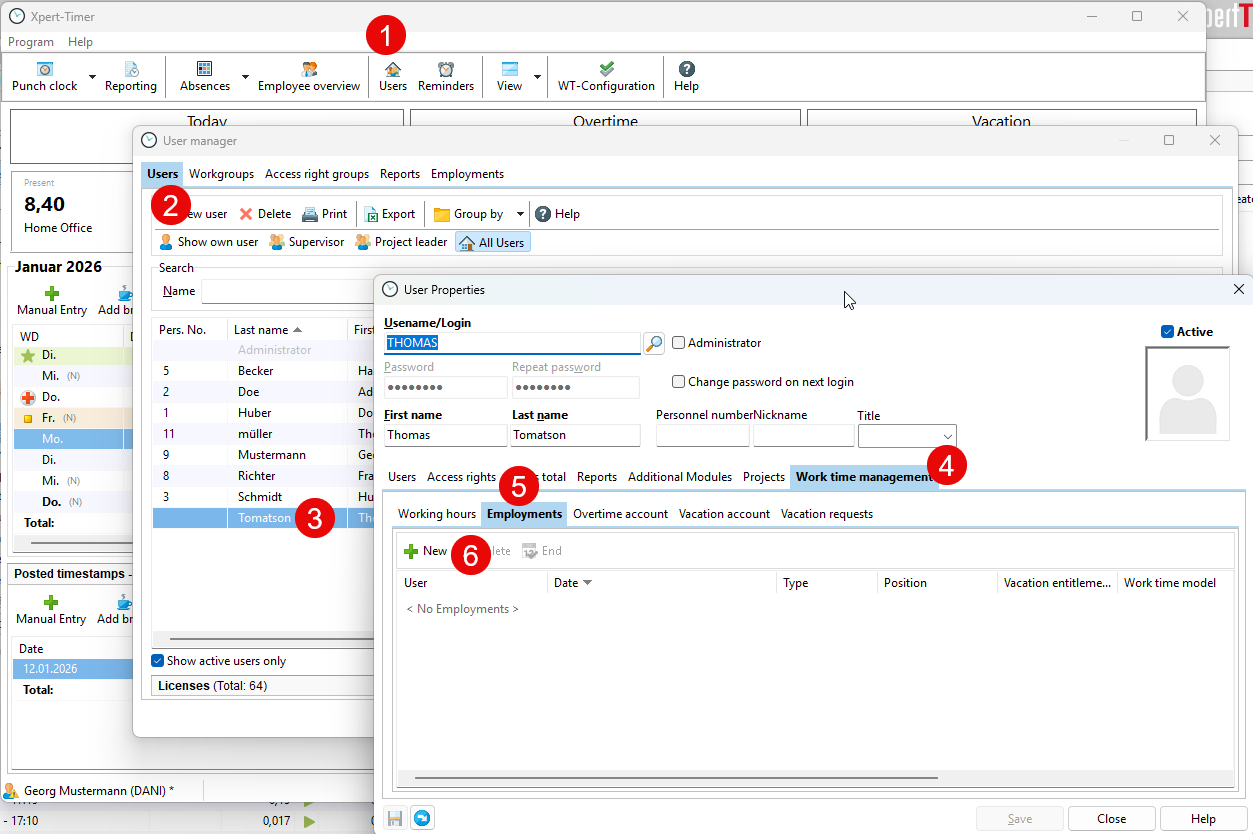
5.Please note that the start date corresponds to the day the time tracking software is first used, not the entry date into the company.
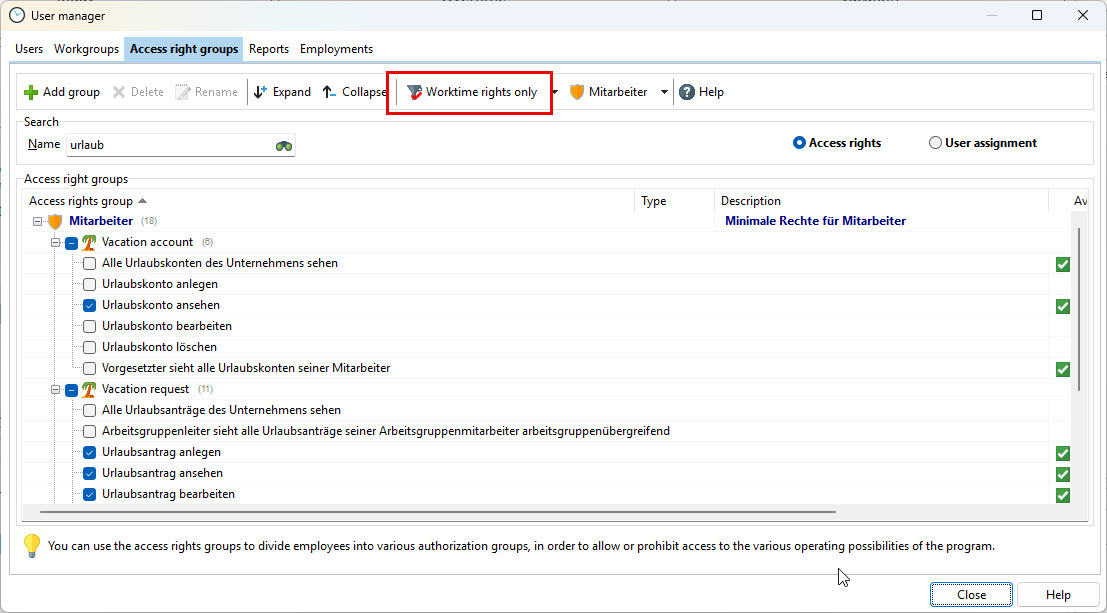
The employment stores the vacation days, the public holidays to be used and the working time model. The specification of a supervisor will later be used for the approval of vacation requests.
You can use "Calculate proportionally" once if the employee did not join on the key date of January 1st of the year. This calculates the pro-rata vacation entitlement. Otherwise, enter the remaining vacation manually.
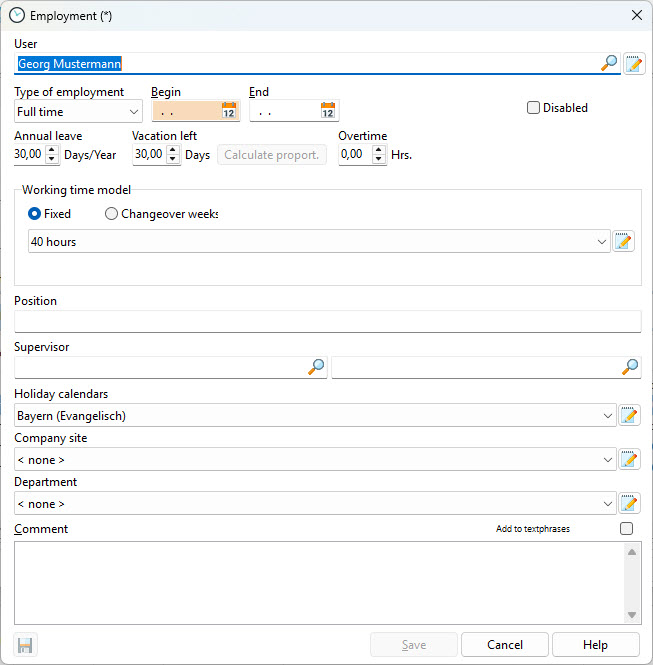
6.Adjust the corresponding rights in the employee's rights group. For the sake of clarity, it is best to filter by "Rights only for Time Tracking" and take a few minutes to set the rights.
We are constantly expanding the rights. With a right click in the list of rights, you can have the rights recreated and thus display newly created rights in your overview. The settings you have made so far will be retained.
Important rights for use are:
- Time stamp: Create, view working time
- Absences: Create, view absence
- Working time General: Allow clocking in / out
- Vacation account: view
- Vacation request: create
- Overtime account: view
7.You can access the time tracking module via the menu item "Working Time" -> WT-Central in Xpert-Timer. From here you can also easily stamp your clock in/out time.
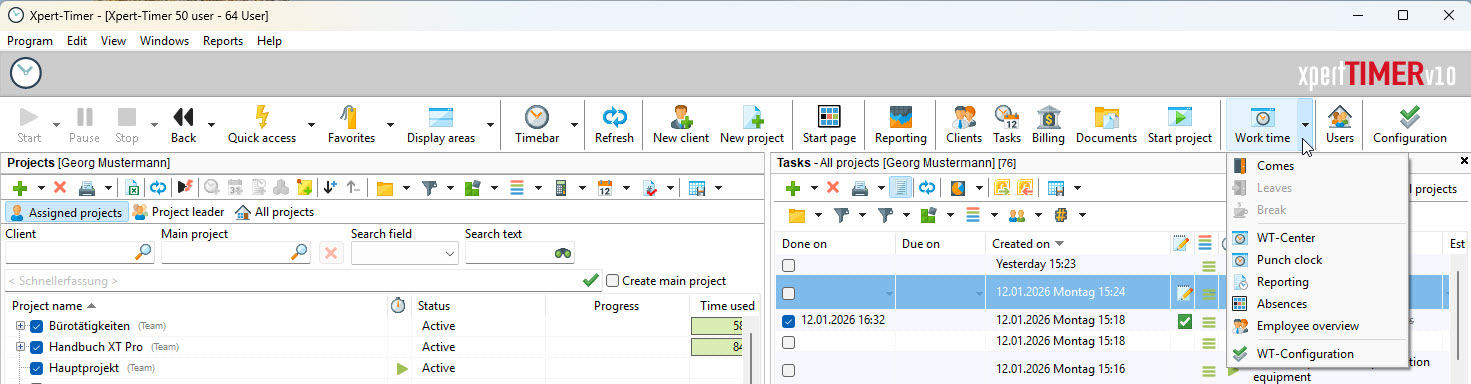
The WT-Central is the control center. From there you can also access all other menu items.
The time clock floats on your desktop, indicating whether you are clocked in or out, as well as the current time.
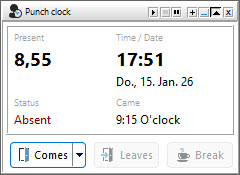
Further configuration options for the time clock are available via right-click.

The evaluation offers a monthly and annual overview as well as a summary overview of all employees.
Absences such as illness, vacation, training, etc. can be found in the "Absences" overview.
To set the working time models, public holidays, break regulations, etc., use the WT configuration.
8.You can also show the buttons for Time Tracking in your timeline. A right click on the already displayed buttons offers the possibility to show the working time under the display elements..
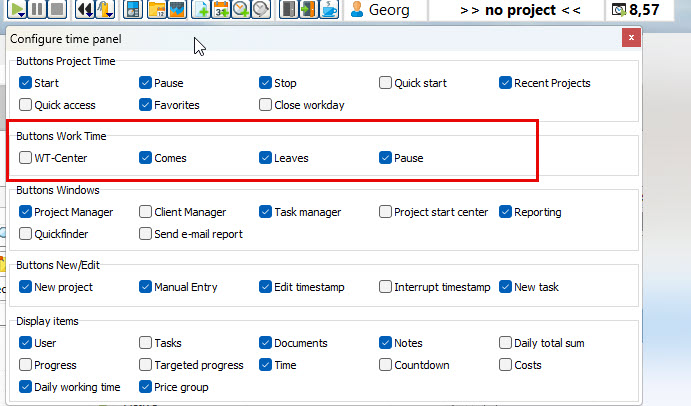
The total working time can then be seen on the timeline and you can stamp Clock in/out/pause with a right click.

Working time is not running, employee is absent: 
Working time is running, employee is present:
Working time is paused, employee is on break: 
9.Also watch the video on YouTube to get a brief insight into the tool.
https://youtu.be/eyJgzxQAj7Y