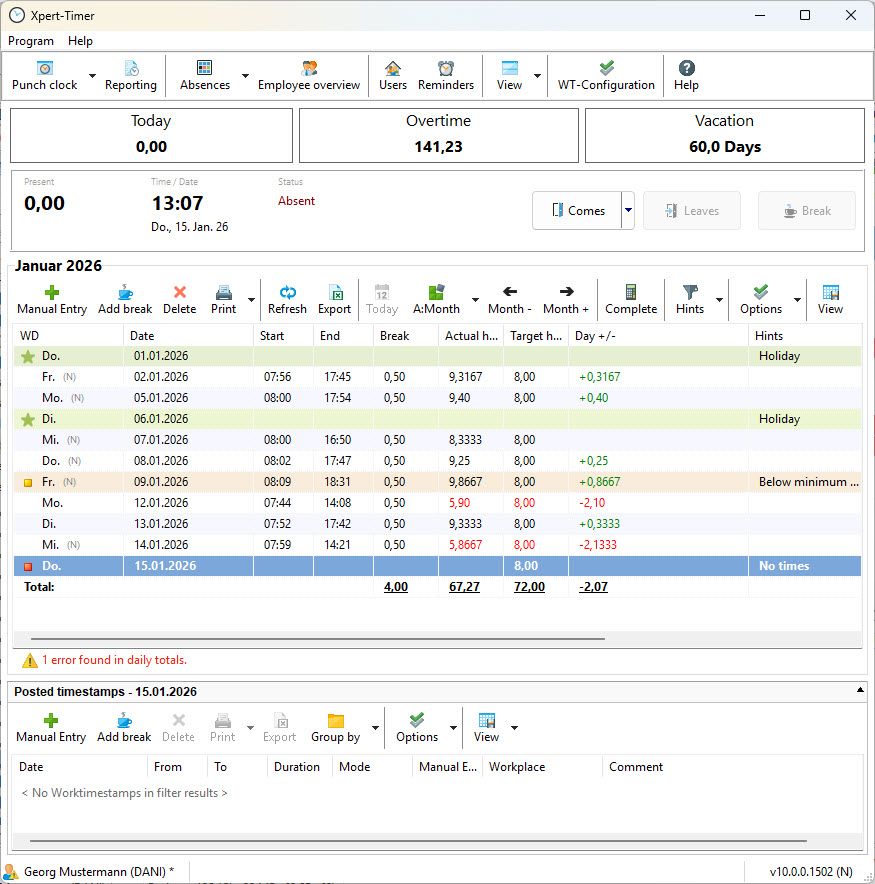
This is the central workspace for Time Tracking. From here, you can access all functions of the software.
You will find an overview of your recorded working times here. If you have the required permissions, you can also make changes.
In the section showing booked time stamps, you can see the exact clock-in and clock-out times for the selected day.
The “Program” menu contains the following options:

Home: The home screen provides an overview and allows you to directly open all other Xpert-Timer modules (including Project Time Tracking), if they are included in your license.
Settings: The settings take you to the Xpert-Timer system configuration. Here you can define options such as the user interface layout or whether the time clock should start automatically when the program launches. All Project Time Tracking settings are also configured here.
Import Working Times: If you previously used another time tracking system, you can import working time stamps from the old software into Xpert-Timer.
Language: Time Tracking is also available in English.
Please note that many functions in Xpert-Timer are available via the context menu (right-click). When you right-click a daily entry, you can create a manual entry or set an absence.
If you have made many changes, you should recalculate the day or month.

Absences are marked in the list with a small icon in front of the entry. These absences can also be set via right-click.

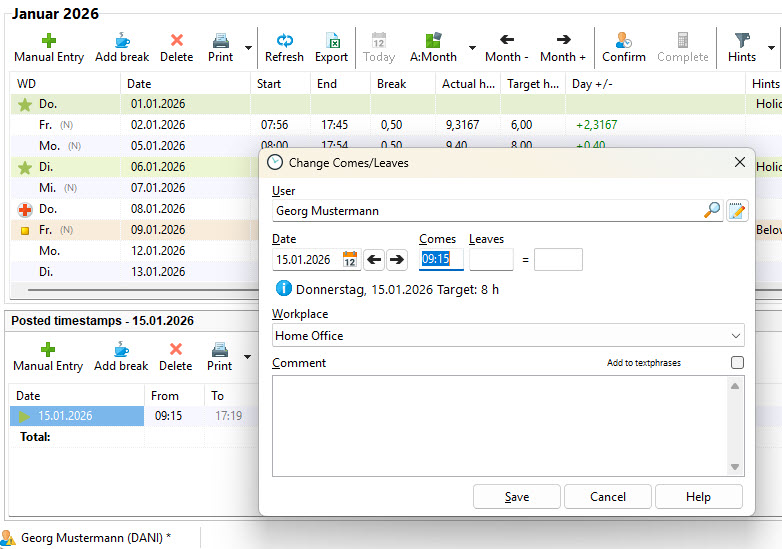
Double-clicking a time stamp allows you to edit the recorded entries. This requires the appropriate user permission.