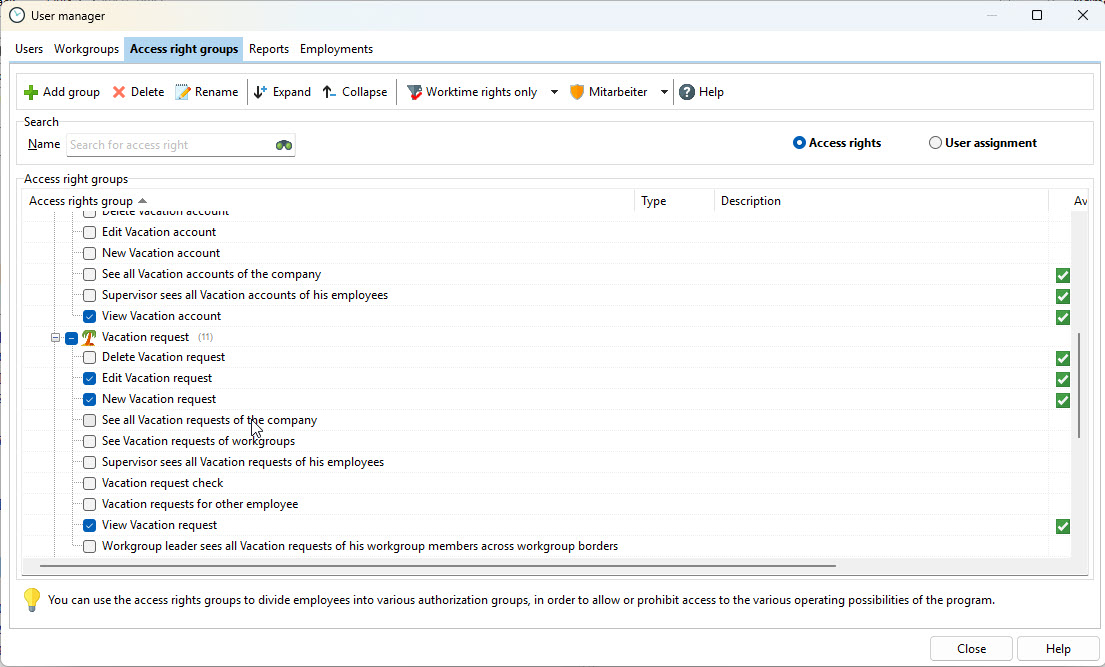
First, check whether the employee has the required permissions to submit a vacation request. Assign the appropriate permissions if necessary. You can find the permissions in Employee Management.
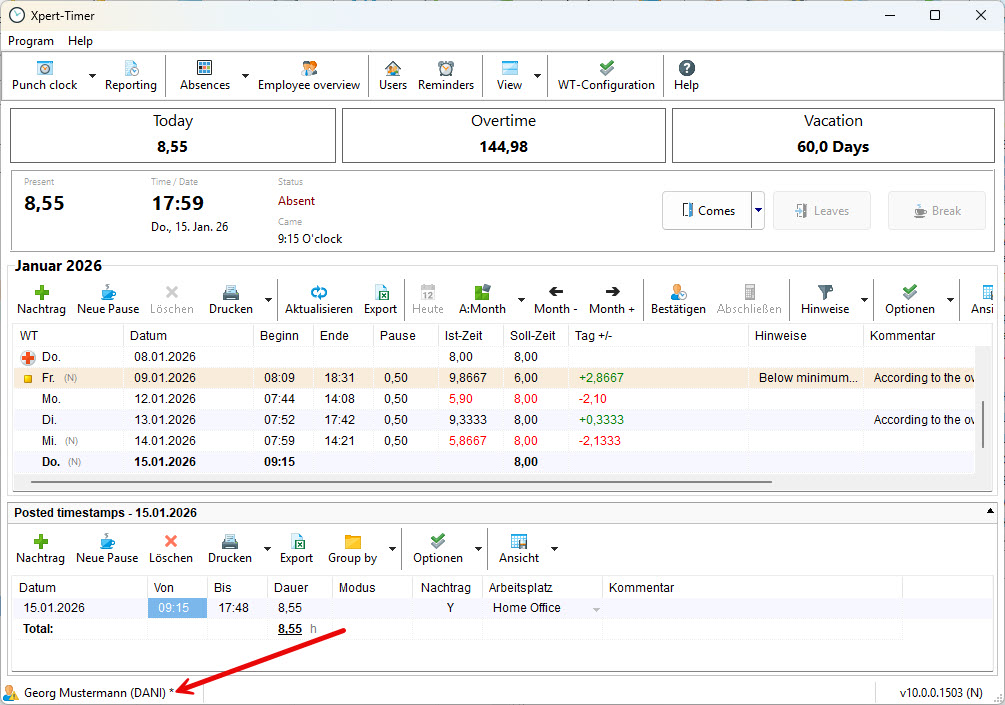
Even with limited permissions, every employee can open their own employee data. From there, they can submit a vacation request.
Within the employee data, the “Time Tracking” and “Vacation Requests” tabs are available.
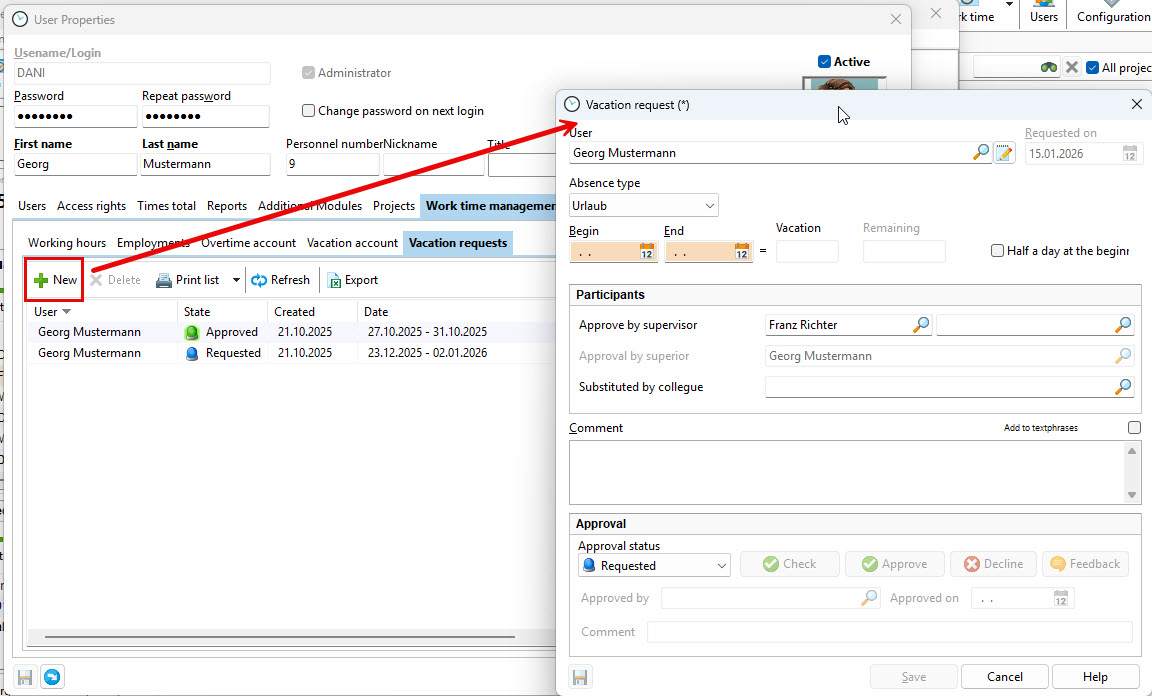
In the absence type, you can choose between Vacation, Business Trip, and Time Off in Lieu.

If the approval workflow is enabled, the request is created with the approval status “Requested”. The employee assigned for approval can view the request and approve it, reject it, or request clarification.
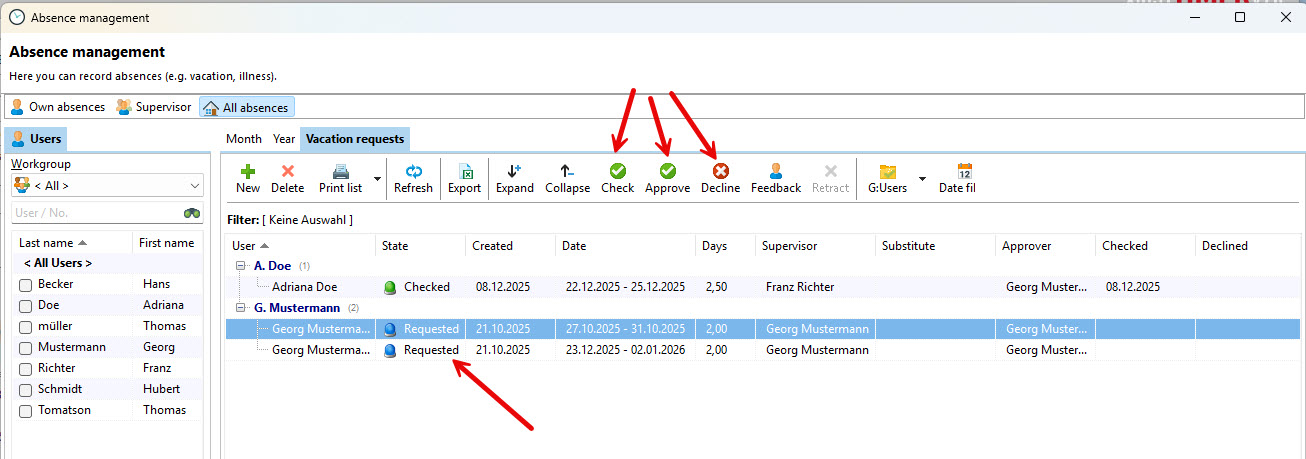
In the absence overview, a vacation request that has not yet been approved is displayed with the abbreviation [VR].
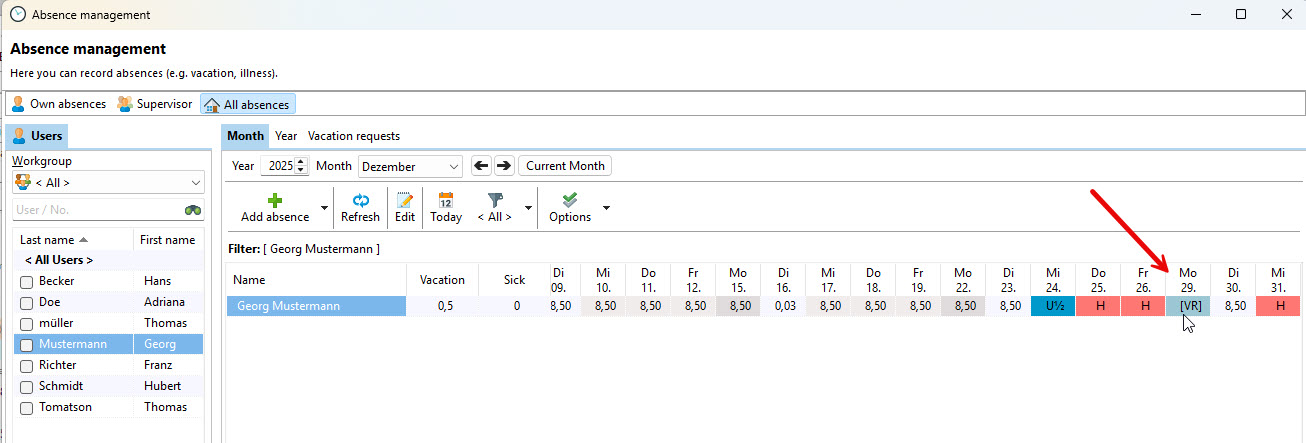
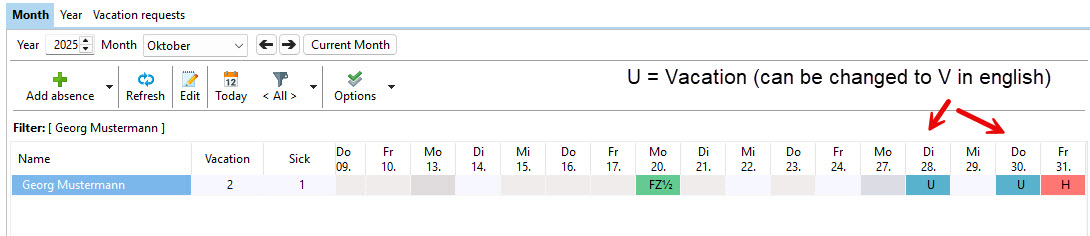
After approval, the abbreviation [VR] changes to V for Vacation.
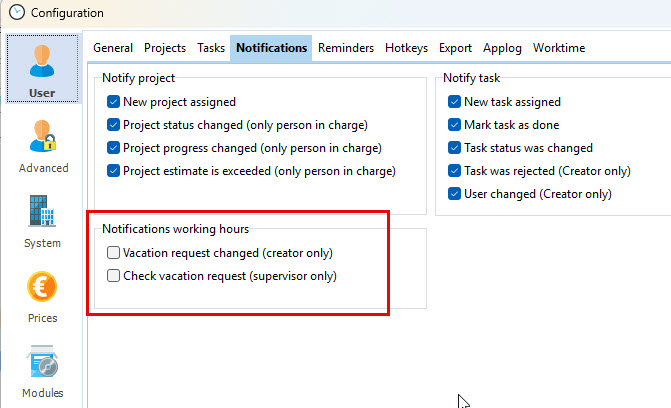
Notifications within the Xpert-Timer System
When an employee submits a vacation request or the request status changes, the employee must enable notifications to receive a pop-up message on their PC. Notification settings can be found under Program → Settings.
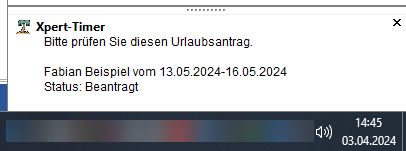
The notification is displayed above the Windows system tray:
Email Notifications
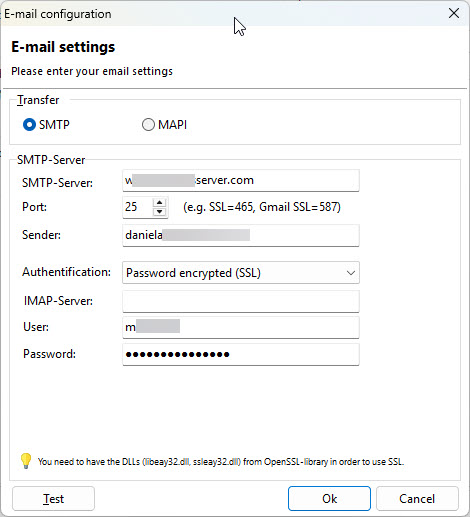
To receive email notifications for vacation requests, the system must be configured to send emails via SMTP. Configure the email settings in the system configuration:

Enter your email credentials accordingly:
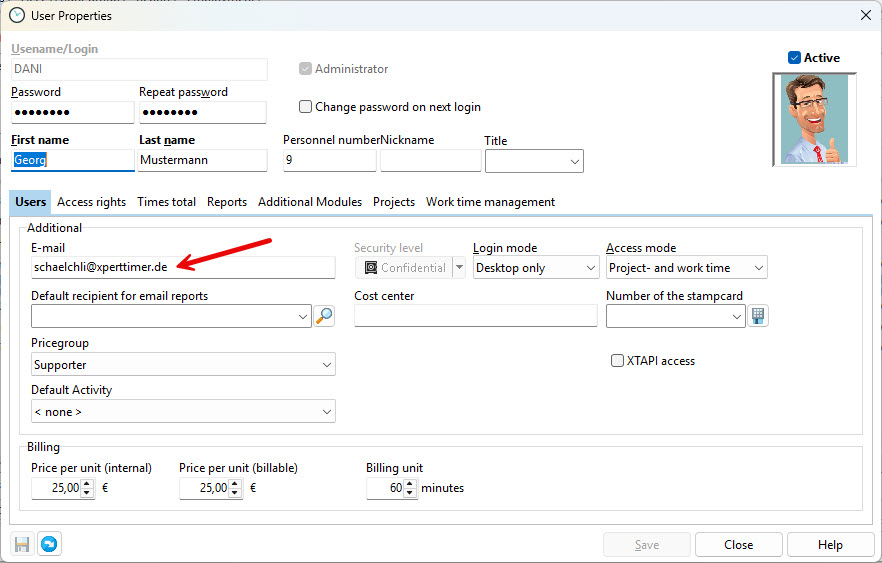
Also make sure that an email address is stored for each employee in order to receive email notifications:
When a new vacation request is submitted, both the assigned approver and their substitute receive an email notification informing them that a new vacation request is available for review.